


Customizing Dota 2 for a comfortable game
Dota 2 has an extremely flexible settings system, allowing each player to customize them to their liking. This will allow you to make the game not only comfortable - some settings directly affect gameplay and can improve your performance. You can see a detailed description of the settings by hovering over them. In this article we’ve compiled general tips on how to configure Dota 2 for a comfortable gaming experience. You can find specific settings using the search bar in the settings tab.
Hotkeys Settings
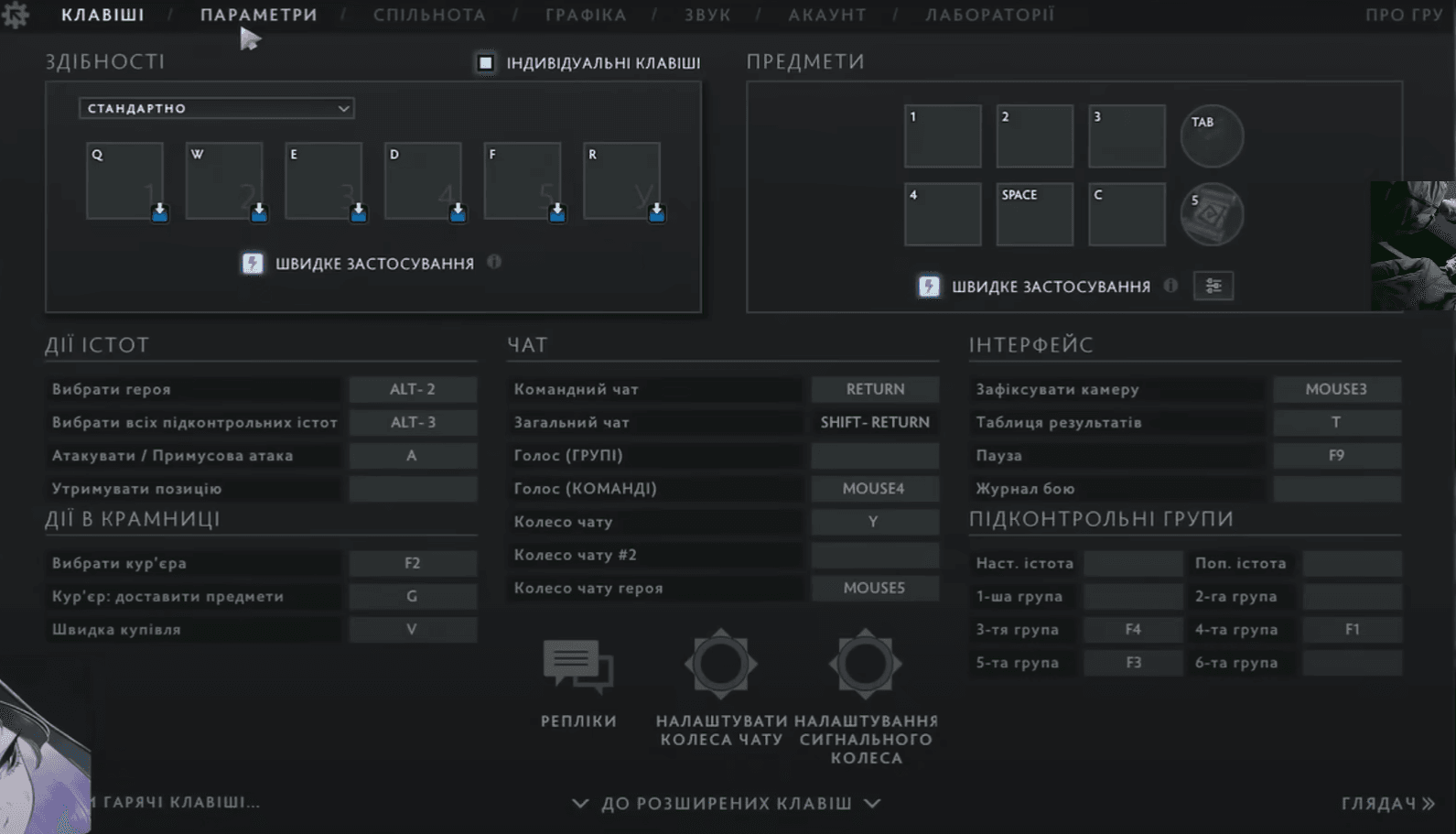
The first tab in the settings of Dota 2 - “Hotkeys” In this tab are all the parameters that relate to the assignment of various functions to specific keys. Start by deciding on keybinds for abilities and items. Players often use the number keys, spacebar, mouse buttons, or scroll wheel for these actions. You can assign two options for a single ability/item - quick cast and standard cast.
Don't forget about “Quick Cast” — significantly speeds up the application of your abilities, because with this function you don't need to press the left mouse, but only the necessary button.
You can choose between two types of quick casts: activating an ability immediately upon key press or upon key release. For abilities with long cooldowns which requiring high accuracy (e.g., Faceless Void’s Chronosphere), the second option is preferable, while the first good for most other abilities (to assign different cast types, you must enable the “Direct Cast Bindings” feature).
To assign separate keys and their types to different entities, switch between control configuration modes: Default/Heroes/Courier/Neutrals. You can use separate keybinds for heroes to assign more useful functions to ability keys that aren’t in use on them. For example, on Phantom Assassin, you can reassign the active ability from Aghanim’s Shard to the ultimate key, since it’s passive.
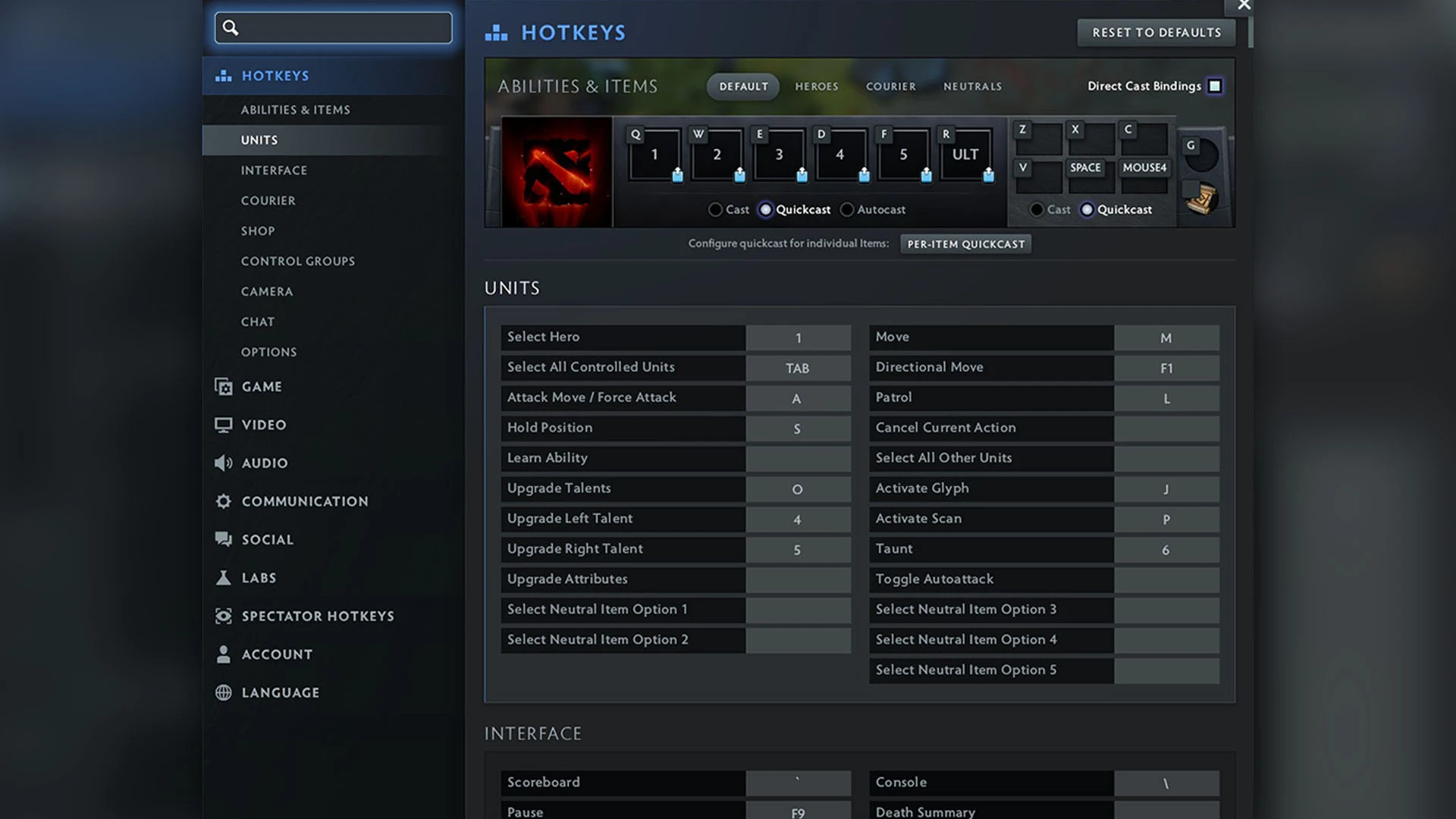
It is equally important to define the parameters in the sections “Units” and “Shop”. Using the keys, rather than clicking these functions with the mouse, you will save valuable time in the game. While most convenient keys may already be assigned, remember that you can combine them with Alt for additional functions. For example, you can assign an ability to “Q” and "Alt+Q" to the first inventory slot.
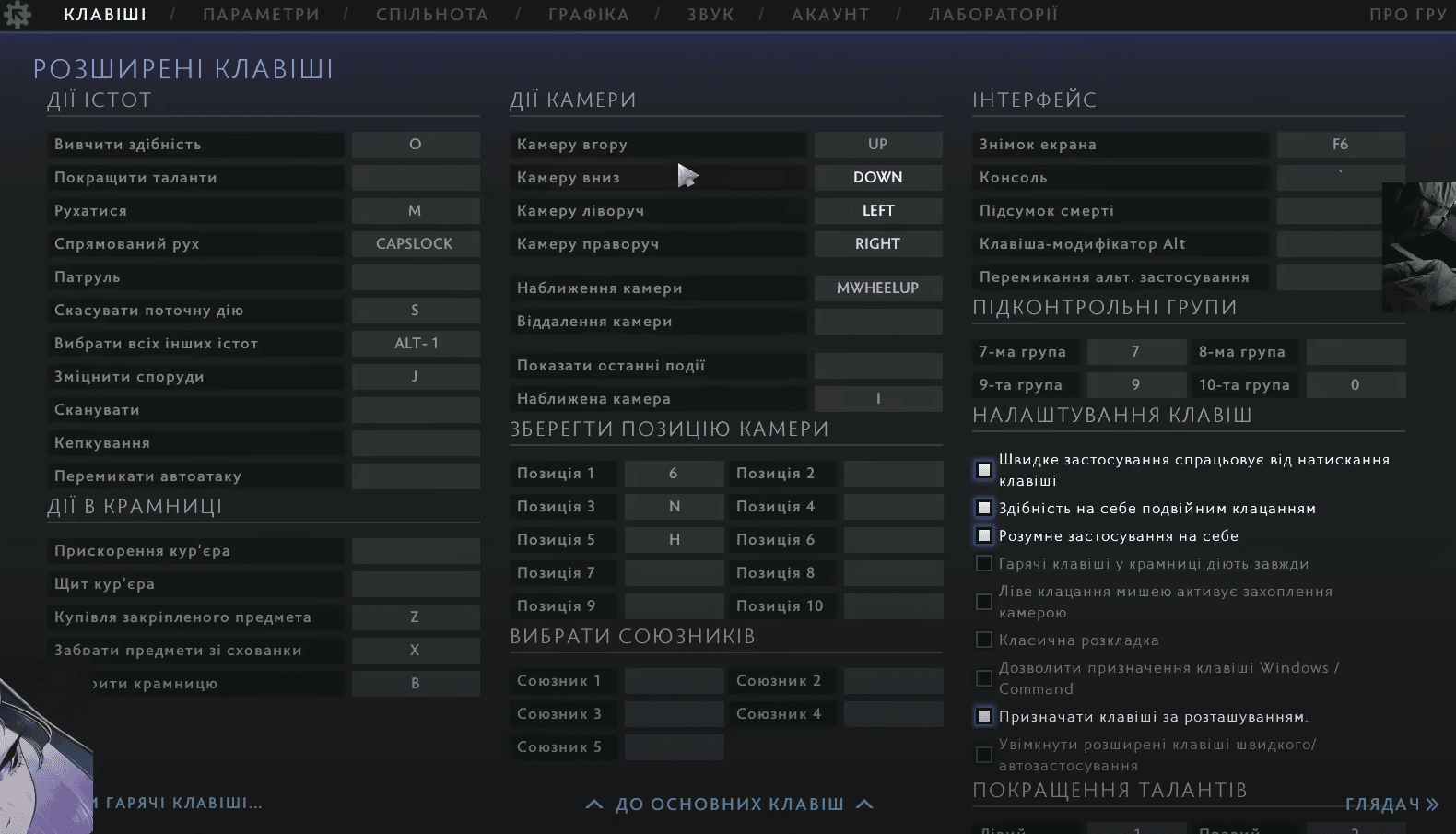
To level up abilities, use Ctrl + [ability key] rather than a separate bind. However, assign a dedicated key for talents.
The “Move” function will allow the selected unit to follow a hero or other creature. This is useful, for example, on Juggernaut: with this setting you can command Healing Ward to follow you or your ally. “Directional Move” is often used on Slark and Shadow Fiend to accurately hit Pounce and Shadowraze respectively. By pressing the key with this setting, your hero will not go around obstacles on the way to the specified point, but will move strictly in the specified direction and stop in front of the first obstacle.
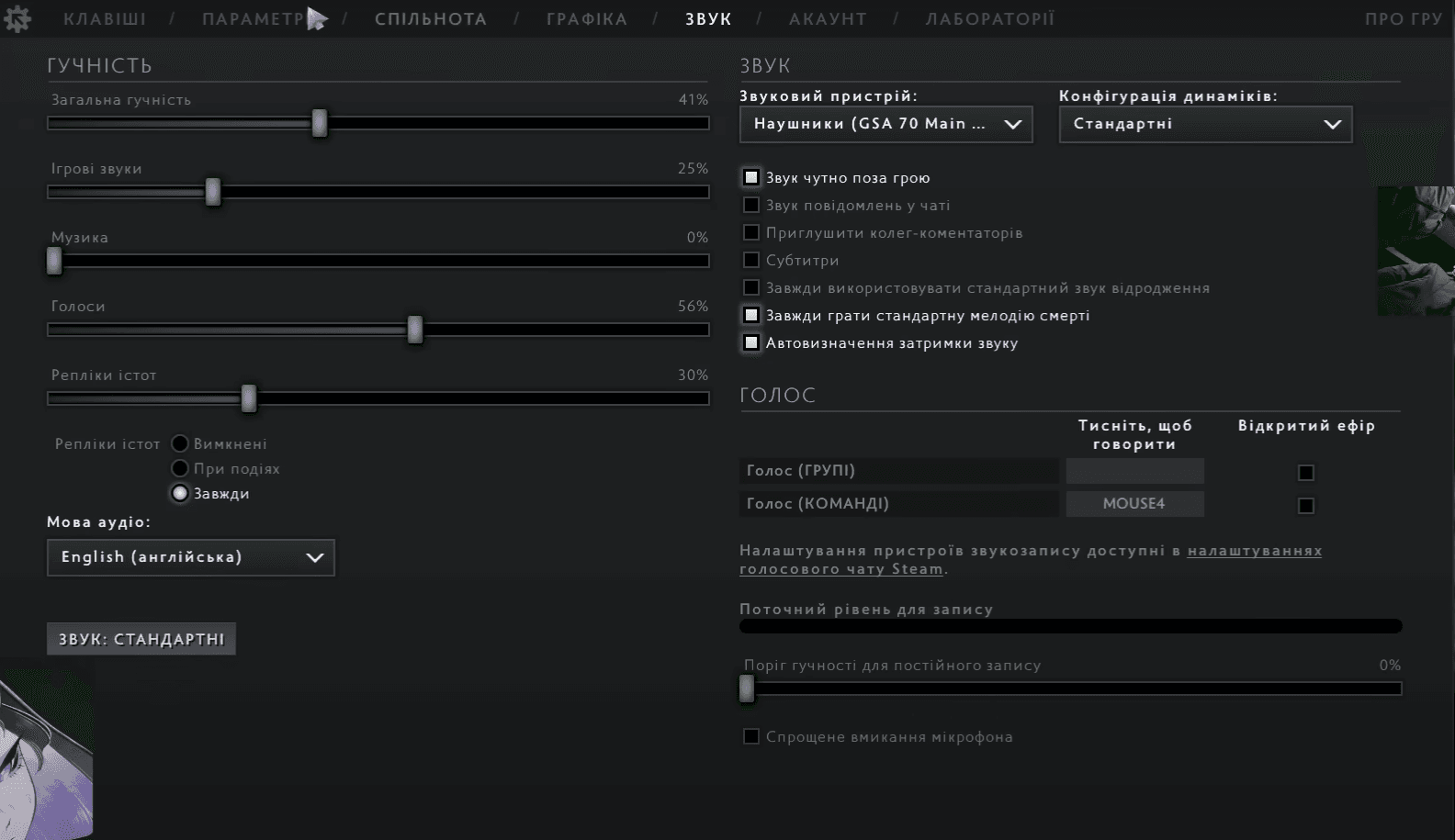
In the “Chat” section you should pay attention to the “voice chat (team)” setting — the higher your MMR, the more important it is to communicate with your allies during the game. Assign a key that allows you to share information comfortably, even during battles. Additionally, make use of Chat Wheels for quick and efficient communication. Messages sent via the Chat Wheel are displayed in the player's chosen language, helping to overcome language barriers.
In the “Camera” section there is only one important setting — Camera Grip. Many professionals advise using this function to move the camera, rather than scrolling along the edge of the screen. The other settings in this section will be useful if you frequently watch live streams and replays.
“Control Groups"- concerns heroes with summons, illusions, and other units. You can assign switching to summons using selected keys. To do this, select a unit, or a group of units, and press the combination ctrl+[selected key of the group]. This can be done in the lobby, or during the game.
General Settings (Game)
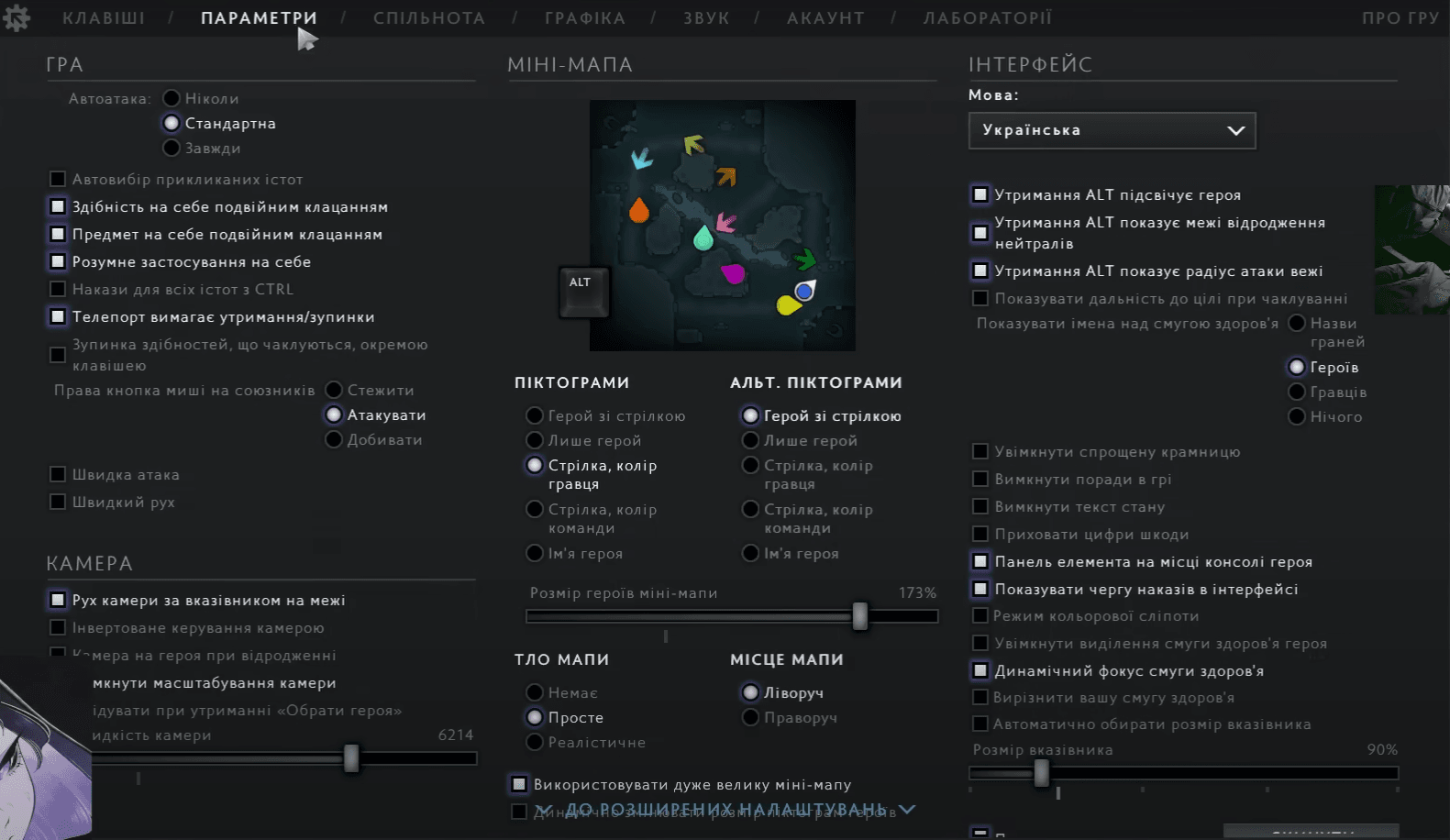
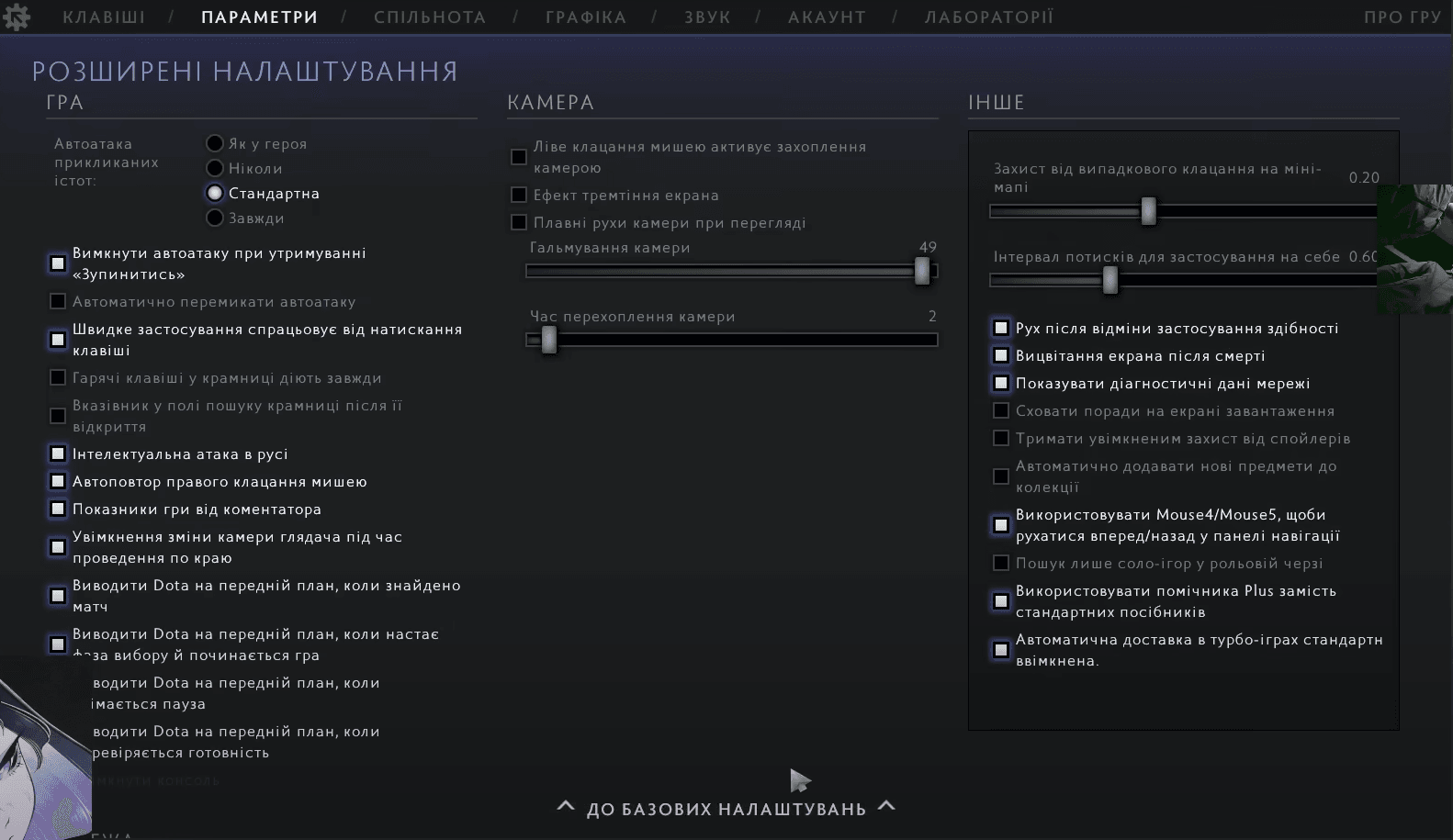
In the “Game” section most players, especially professionals, use similar configurations. Here are some universal tips:
- Disable: Auto-select summoned units, Stop abilities with a separate key (Channeled abilities require Hold/Stop), Quick attack/Move, Center camera on hero on respawn, Screen shake, Camera color-shift when dead.
- Enable: Double tab Ability/Item to self cast, Smart Double tab, Stop teleportation with a separate key (Teleport requires Hold/Stop), Auto-repeat right mouse.
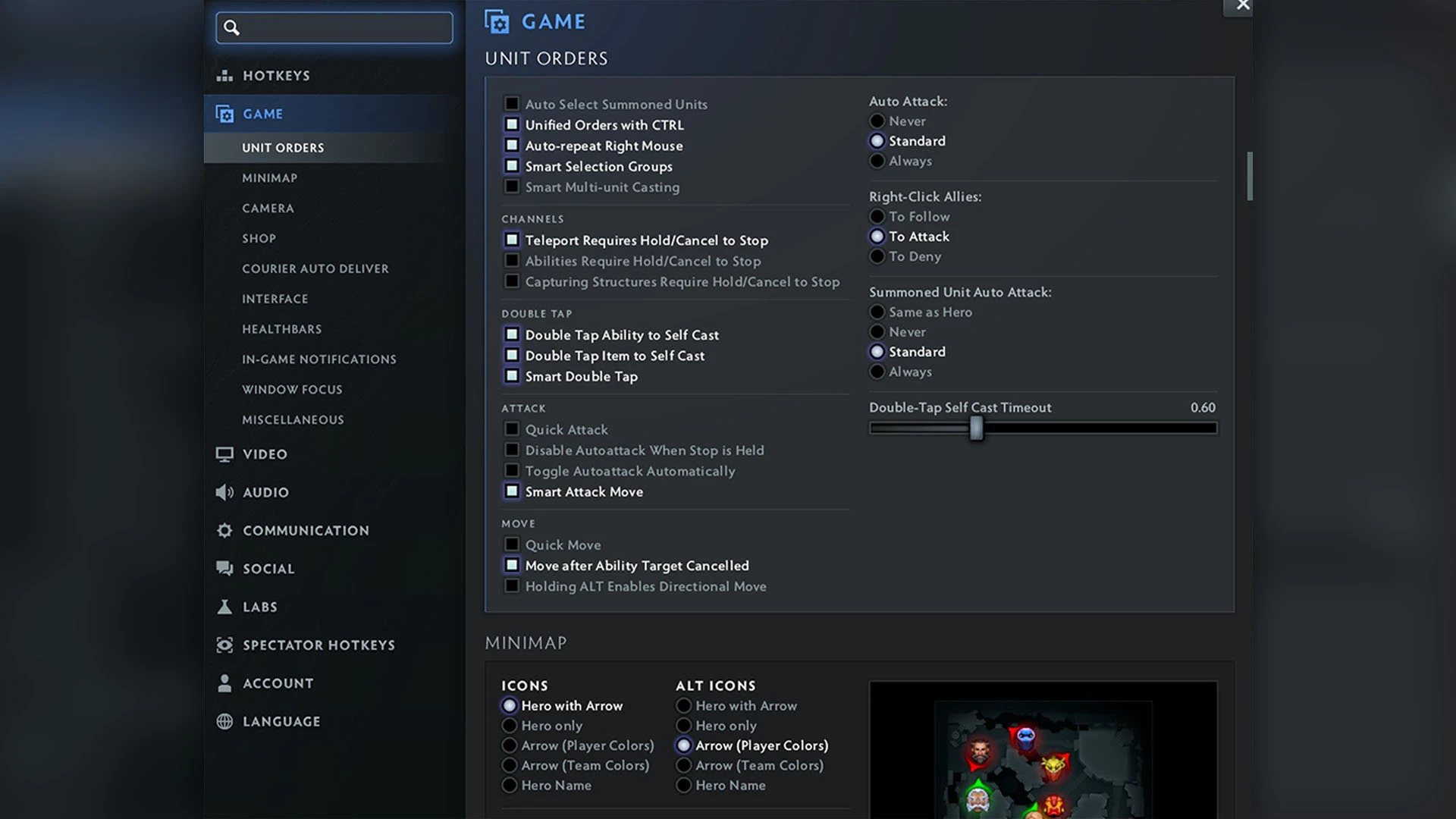
When working with the settings in the above sections, you can be guided by pro players and streamers. But do not copy their “config” directly. Certain settings of gamers are quite specific, for example, some have moved to Dota from other games where the minimap was placed on the right, and they use such a variation of the interface for their convenience. And those who came to Dota 2 from Dota 1 are used to the Legacy Keys for heroes' abilities, where most skills are assigned keys, the letter on which matches to the first letter in the name of the ability.
Of course, it is important to use the functions that are advised by professionals, but when assigning specific keys it is better to focus on your own preferences, which may be based on your previous gaming experience, or the pool of heroes you play.
Video
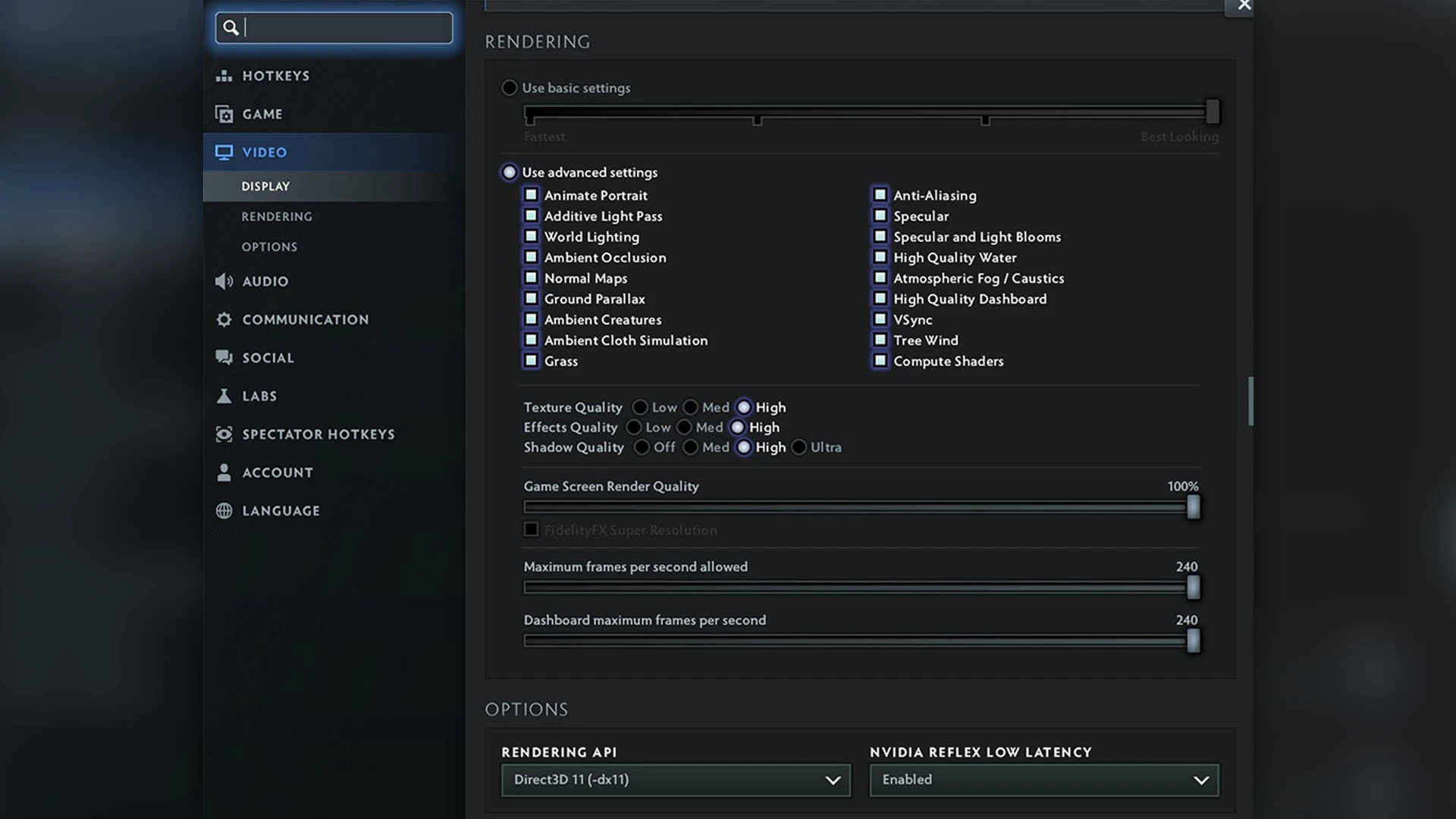
Adjust graphics based on your system’s performance capabilities. However, most pro players disable all visual effects in the “Rendering” section to minimize the amount of unnecessary elements on the screen.
Social
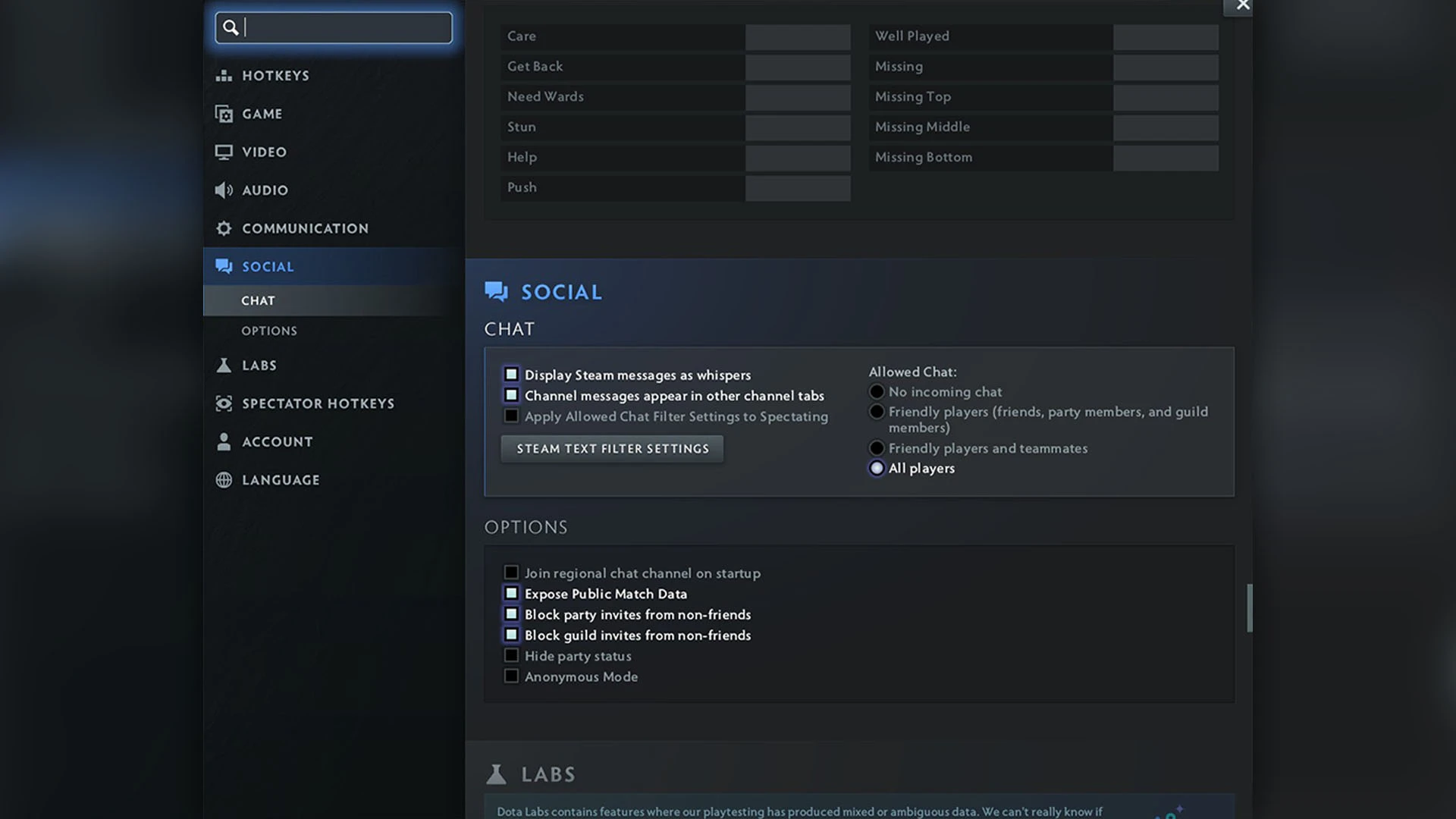
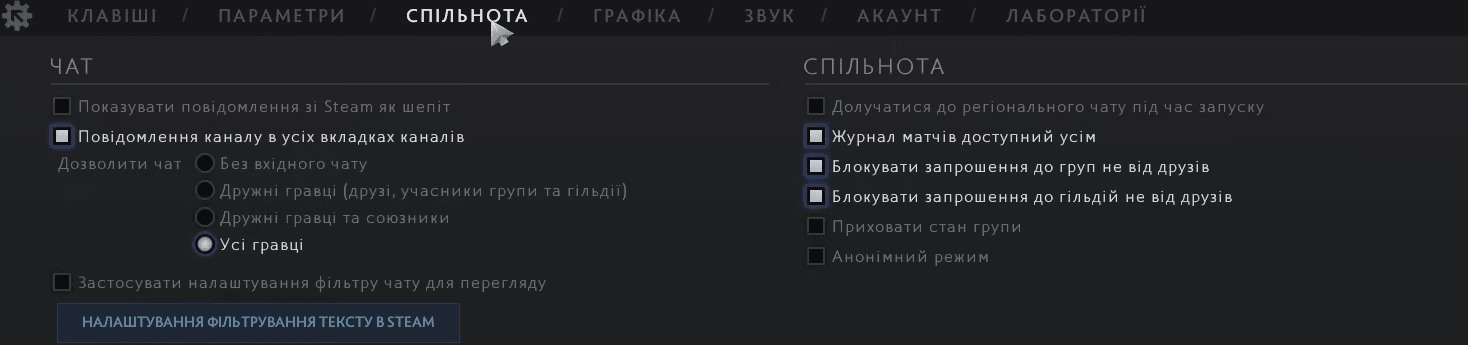
The settings in the “Social” section will be useful mainly for streamers. If you want to be able to track your stats on various services - enable “Expose public match data”.
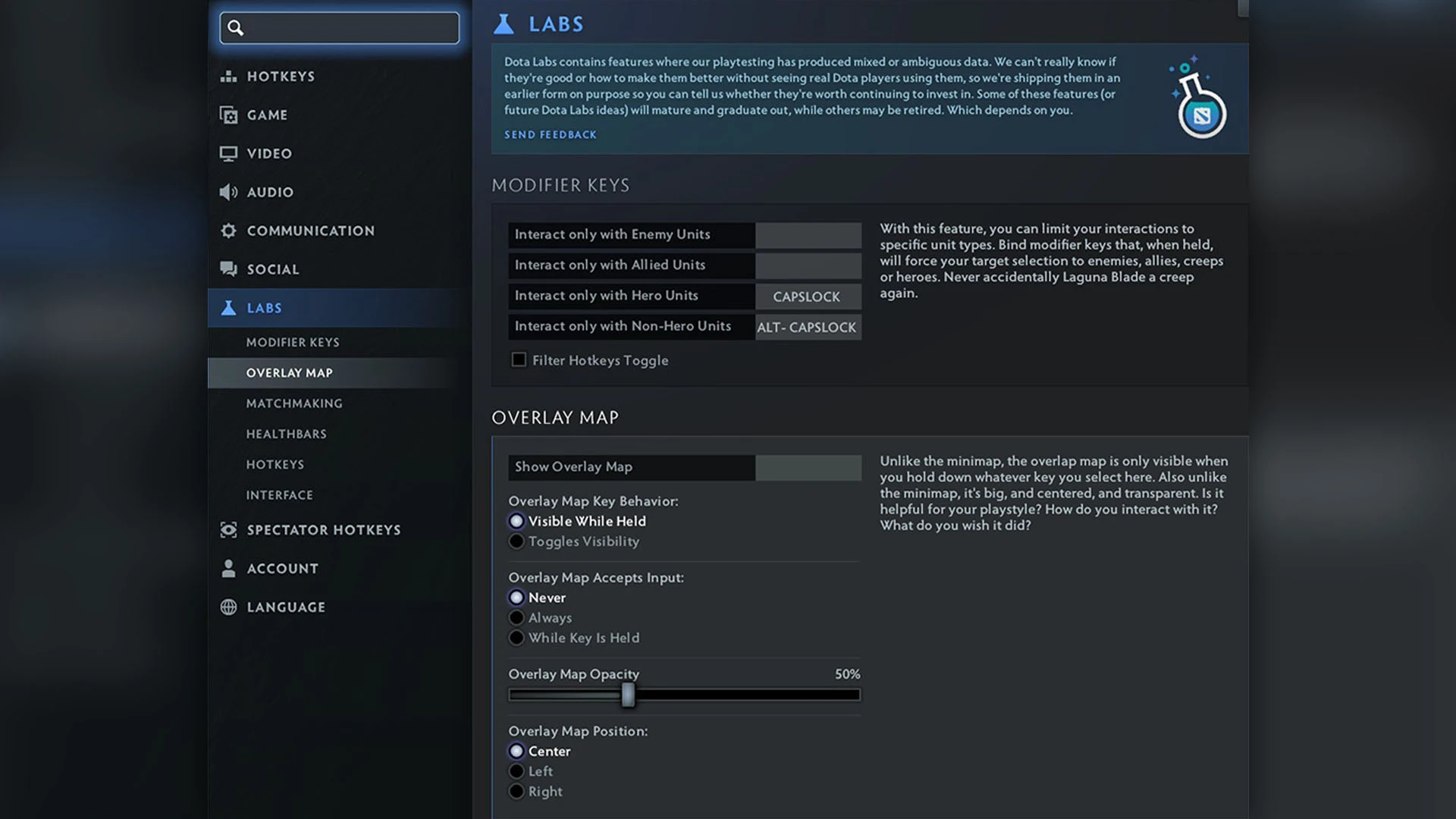
Labs
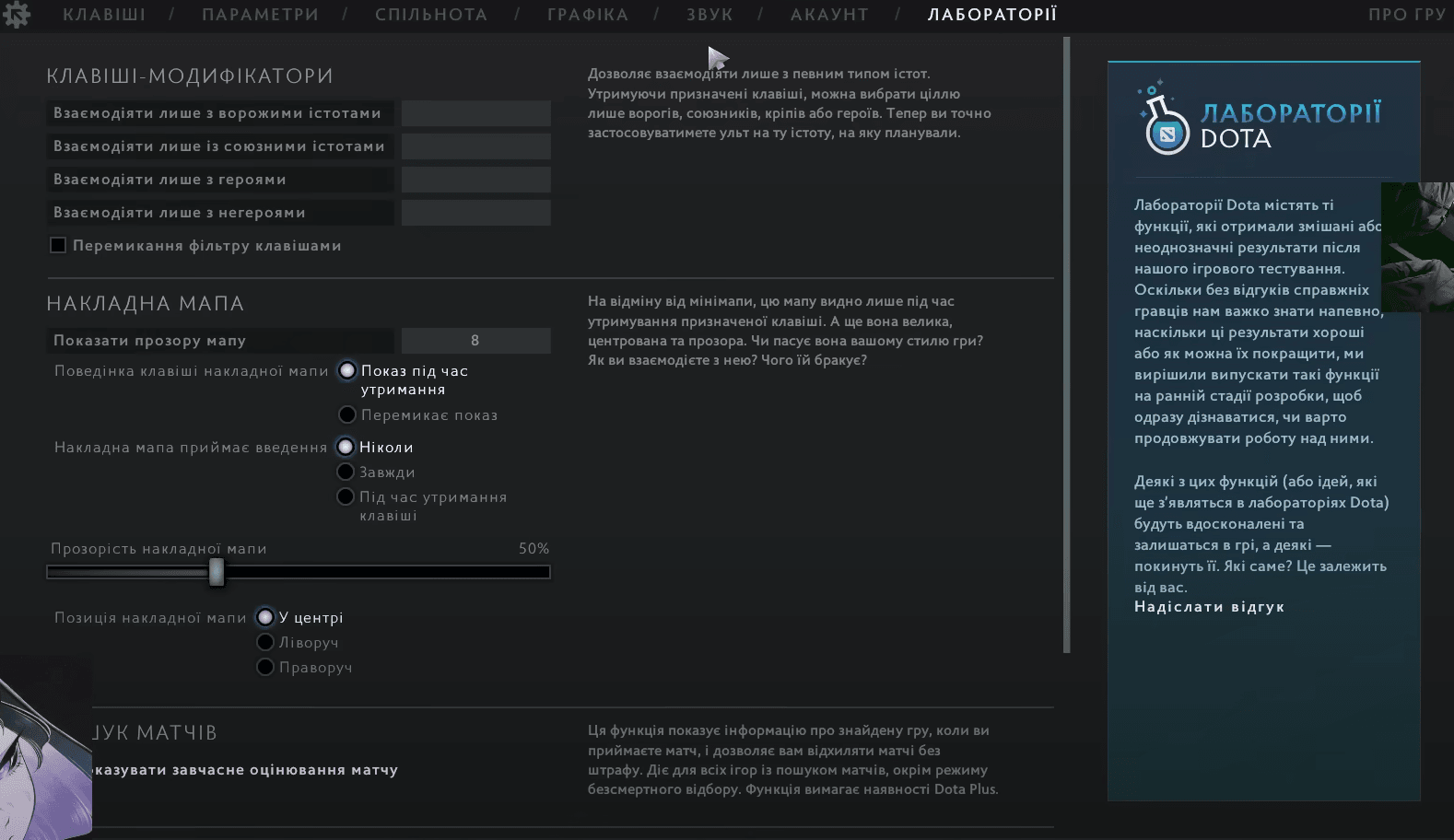
Dota 2 Labs contains several extremely useful features. In the group “Modifier Keys” we advise you to bind “Only hero” (this will allow you to not miss click on the creep) and “Only non-hero” (so that heroes with a large model, or those that can walk through creatures (phased), can`t prevent you from farming creeps). Another incredibly useful feature — “Persistent Range Indicator”. You can read a detailed description of it on the right side of the page. Pay attention to “Dynamic health bar focus” as well.
In conclusion, we suggest you to explore the configuration of Illya Yatoro Mulyarchuk, which he shared on the stream:




by CyberScore