


The most useful console commands in Dota 2
The console in Dota 2 is a command-line interface that allows you to change settings, interact with the game through text commands, and retrieve important information. It helps configure game parameters, improve performance, test mechanics, and view system messages, including errors and warnings. By default, the console is hidden, but it can be activated through Steam launch options.
How to open the console?
- Activate the console:
- Open Steam.
- Find Dota 2 in your library.
- Right-click on the game → "Properties" → In the "Launch Options" field, enter "-console" and save (here you can also set "-novid", which disables the intro video in the game)
- Enable the console in-game:
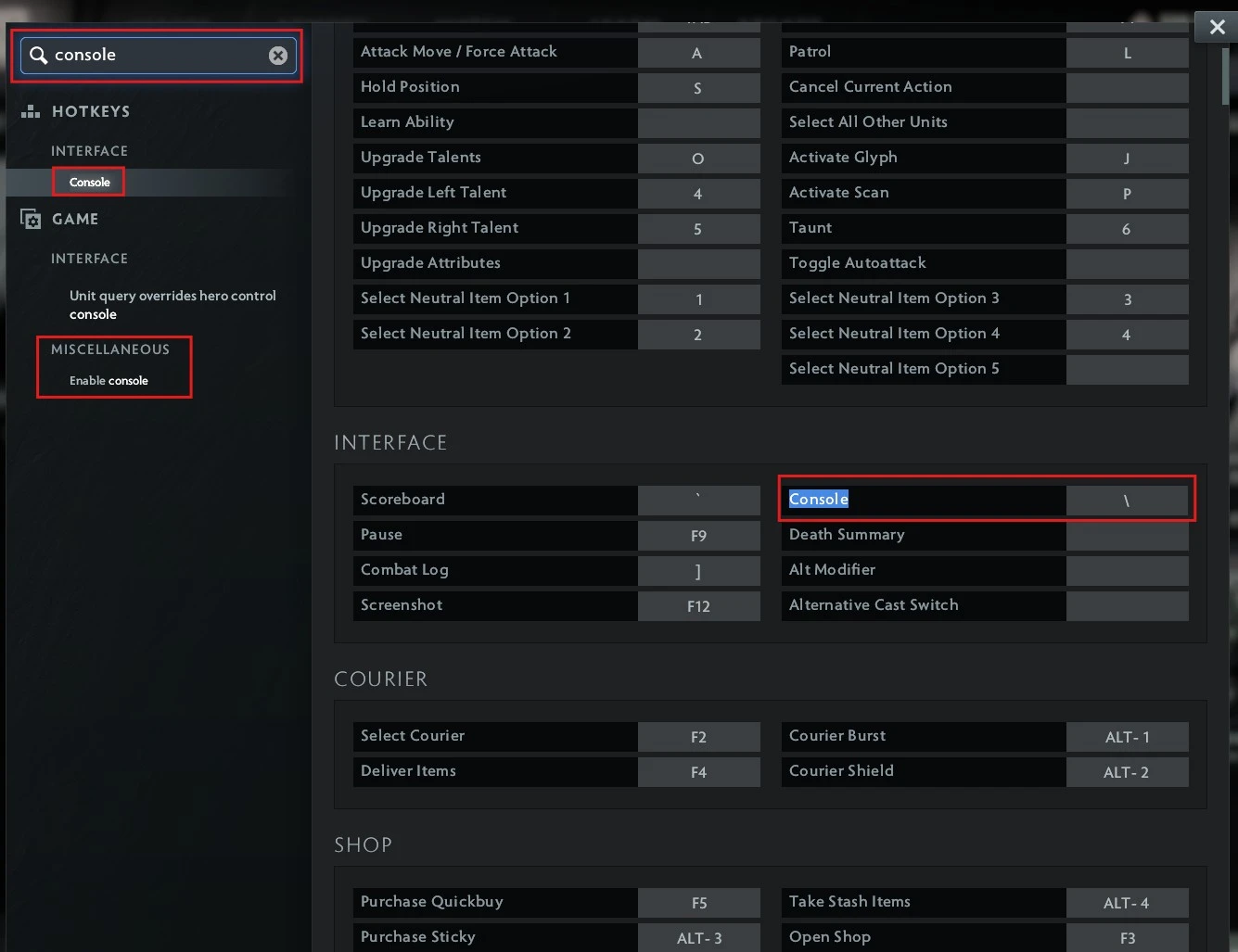
- Open the settings in Dota 2 and type “Console” into the search bar.
- Make sure the “Enable Console” option is enabled (it is enabled by default if the "-console" launch option is specified), and in the “Interface” section, assign a convenient key to open the console.
- Open the console:
- In the game client, press the “\” key or another key assigned to open the console.
Note:
- 1 – activates a command;
- 0 – deactivates a command.
Commands for game settings:
- dota_hud_healthbars 0 – disables health bars above heroes and creeps;
- dota_no_minimap 1 – disables the minimap;
- dota_minimap_hero_size 600 – adjusts the size of hero icons on the minimap;
- dota_hud_healtbar_number 1 – displays health as a number above the hero;
- dota_camera_lock – binds a specific button to lock the camera on the hero;
- +dota_ability_execute – allows binding an ability to a specific key (useful in custom games);
- key_findbinding – shows which command is bound to a specific key.
Commands for performance improvement:
- fps_max 60 – sets the frame rate limit;
- cl_predict 1 – enables client-side movement prediction, which can improve smoothness in online matches;
Commands for use in lobbies - enter in in-game chat:
- -lvlup 30 – increases the selected hero’s level by the specified amount;
- -levelbots 5 – increases the level of all bots;
- -gold 15000 – gives you gold;
- -refresh – resets cooldowns and restores resources;
- -respawn – resurrects the hero;
- -spawncreeps/neutrals – spawns neutral and lane creeps;
- -killwards – destroys all wards;
- -createhero <name_hero>/enemy – creates an allied or enemy hero;
- -item <item_name> – gives a specific item;
- -givebots <item_name> – gives an item to all bots;
- -ping – shows the current ping (can also be used in regular games);
- -startgame – starts the game from the zero-second mark;
- -teleport – teleports the hero to the cursor location;
- -wtf/unwtf – enables/disables WTF mode, where abilities and items have no cooldowns or mana costs;
- -allvision/normalvision – removes or restores the fog of war;
- -disable/enablecreepspawn – disables/enables creep spawning on the lanes.
Commands for use in lobbies - enter in the console:
- sv_cheats 1 – enables cheats in the lobby;
- host_timescale – changes the game speed (only with cheats enabled in the lobby);
- dota_daynightcycle_toggle – toggles the time of day in a private lobby;
- dota_easybuy – allows purchasing a specific item for a specific bot;
- dota_camera_distance – changes the camera distance (a cheat, can only be used in private lobbies or by commentators);
- status – shows players ping;
- disconnect - disconnect from the current match;
- dota_game_account_client_debug – provides information about the account.
Saving console commands
Note that if you set up the necessary commands, the configurations will reset the next time you launch the game. To save console commands in Dota 2 and avoid entering them manually each time, follow these steps:
- Open Notepad on your computer.
- Enter the required console commands, following the rule: one command per line.
- Save the file with the name autoexec.cfg.
- Find the path to the Dota 2 game folder:
- Open Steam.
- In your game library, right-click on Dota 2 and select "Properties."
- Go to the "Installed Files" section and click "Browse." This will open the folder with the installed game.
- Go to the folder game\dota\cfg.
- Copy the created autoexec.cfg file into the cfg folder.
Using console commands in Dota 2 allows you to customize the game to your preferences, improve performance, and gain useful information during matches. While many commands serve a supportive role, their proper use can significantly enhance comfort and gameplay efficiency. Experiment with settings, find optimal solutions, and make your gaming experience even more enjoyable.



by CyberScore